
Option A: Share an Invitation Link
- Go to app.seedtalent.com and log in.
- Go to Communities > Your Communities and click the community you want to add people to.
- On the community's detail page, click the copy icon next to the Invitation Link.
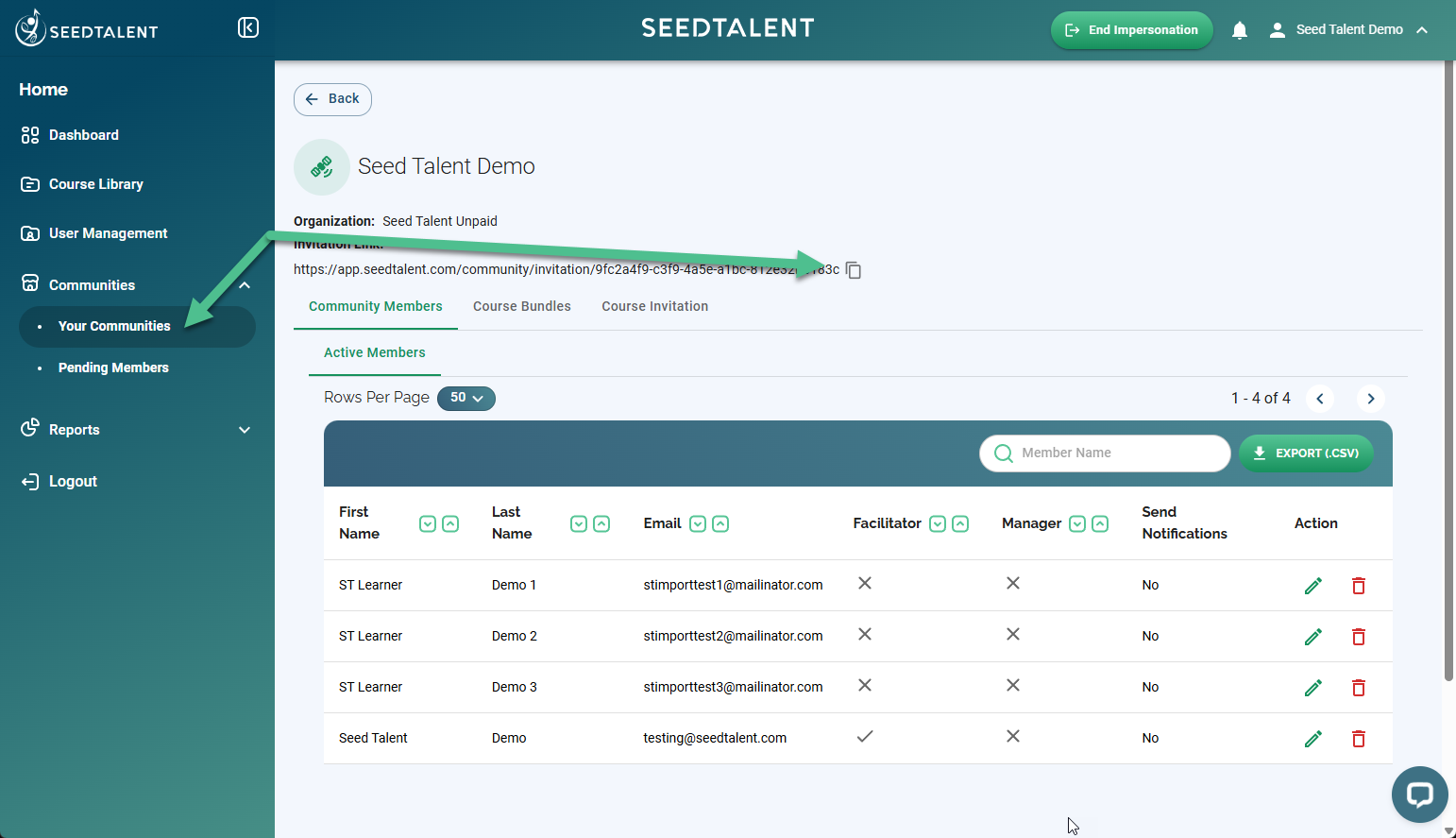
Send that link to anyone who needs access. They can use it to either register a new account or log into an existing one, and they're added to the community automatically.
Option B: Bulk Import via Template
Use this when you have a whole roster to add at once, for example a new store's full staff list.
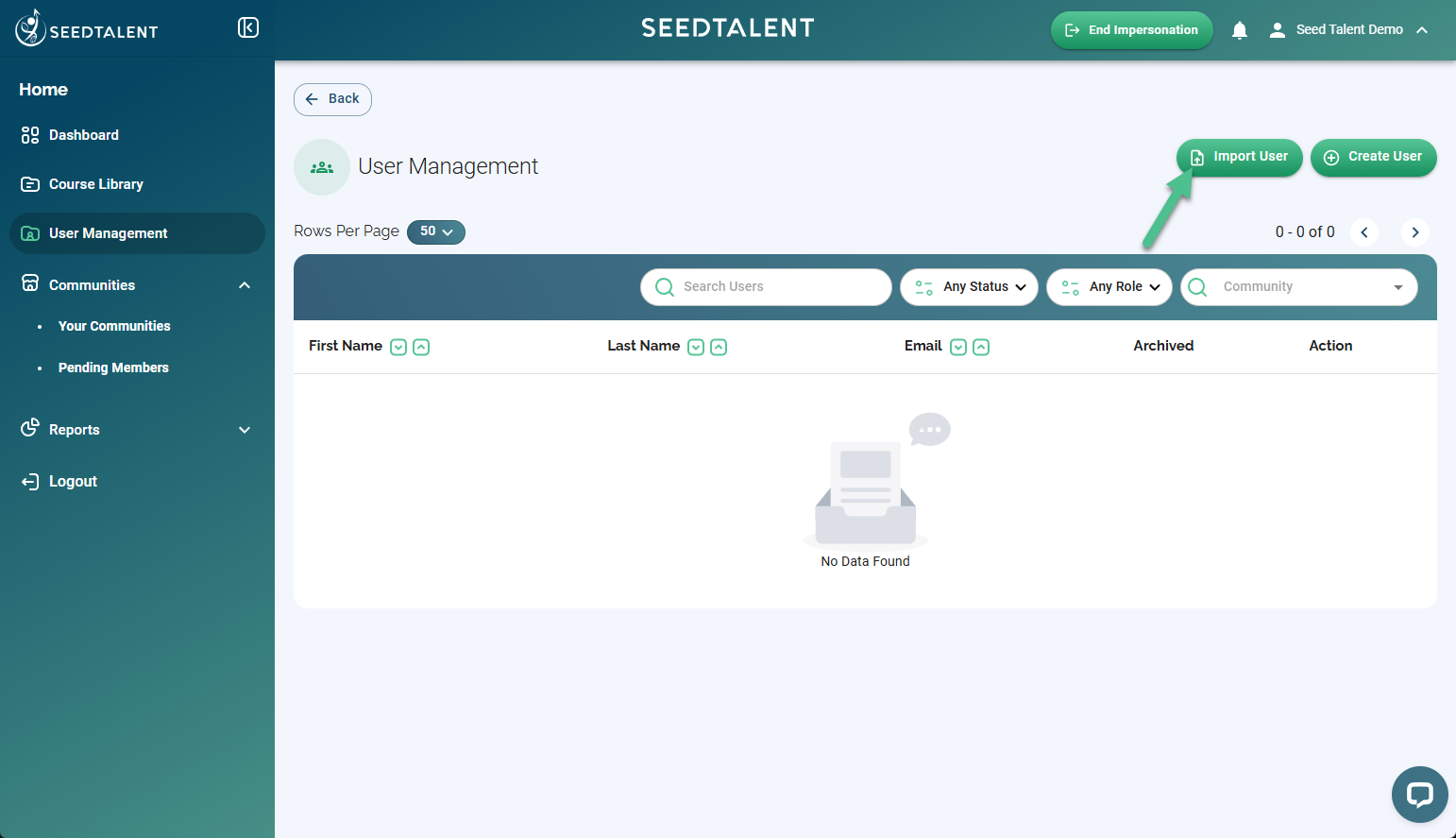
- Go to User Management.
- Click Import User (next to Create User).
- In the Upload Users dialog, click Download Template to get the Excel template.
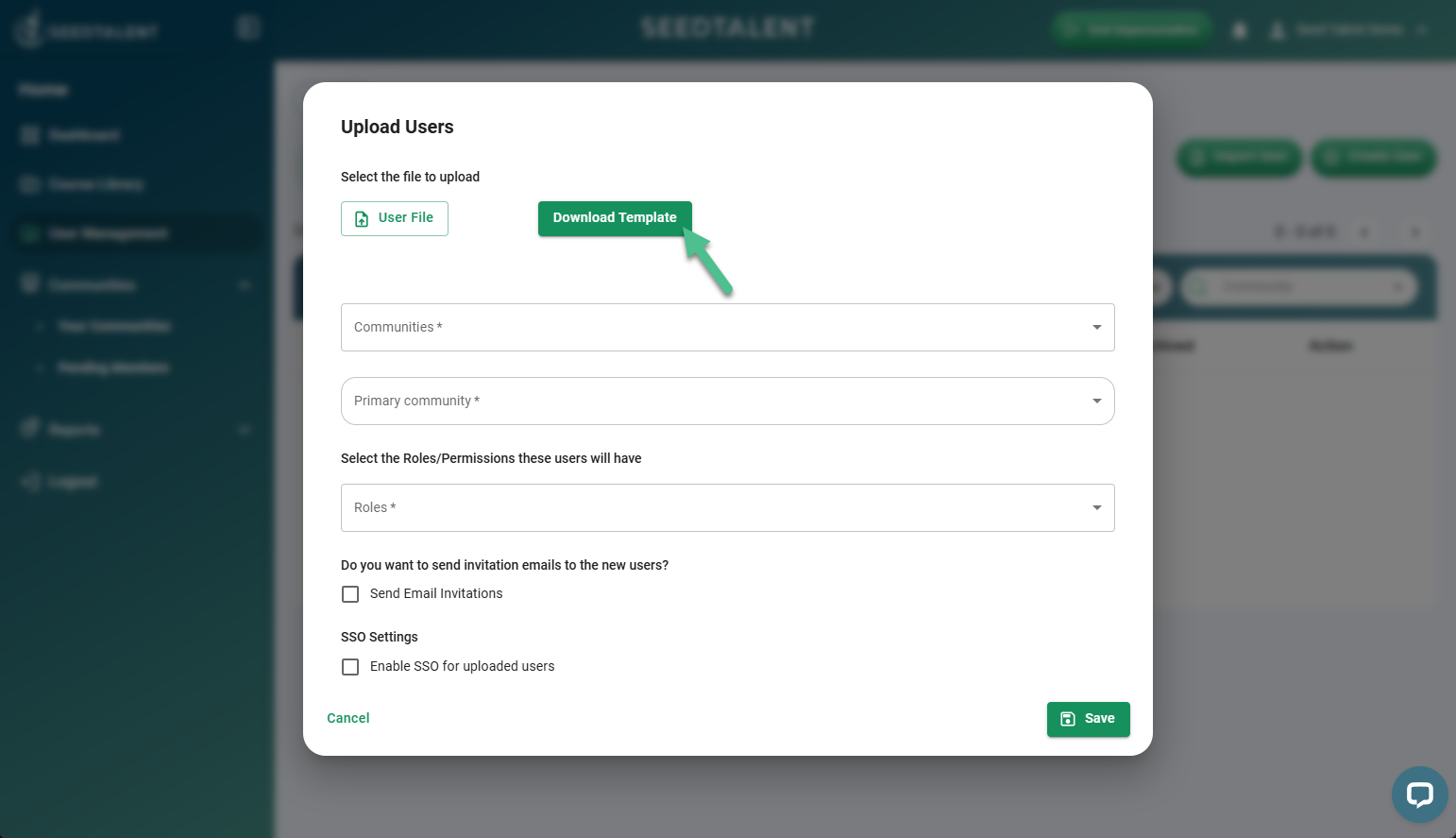
- Fill out the template with your roster, including First Name, Last Name, and email address for each user, then come back and click User File to select the completed file.
- Select one or more Community(ies), the Primary community, and Roles for the imported users.
- Choose whether to send invitation emails to the new users which will immediately notify the users of their account creation and prompt them to set a password