
Steps
- Go to app.seedtalent.com and log in.
- In the left navigation, click Communities to expand the menu.
- Click Your Communities.
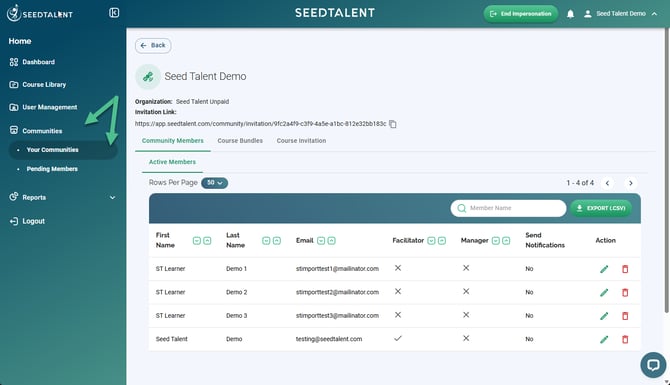
- Click the community you want to manage.
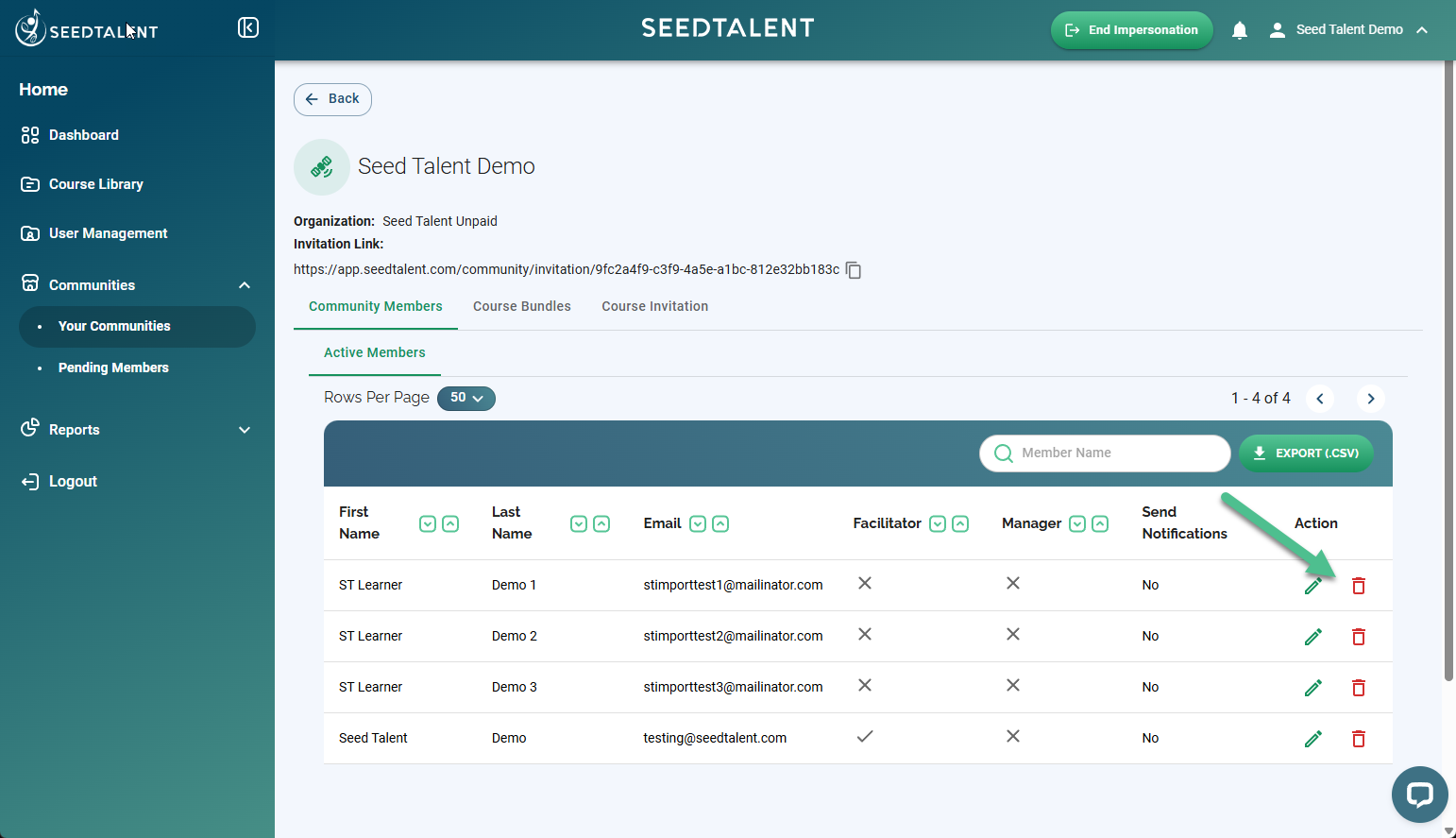
- On the Community Members tab, find the member's row and click the trash icon in the Action column.
- In the confirmation dialog, click Yes, Remove.
Good to know
-
- The pencil icon next to the trash icon edits a member's Facilitator or Manager tag and notification settings, without removing them.
- You can search by member name and export the current roster to CSV from the same screen.
- Removing someone here only removes them from this one community; any other communities they belong to are unaffected.